Disclosure: This article contains affiliate links. If you purchase through our links, we may earn a commission at no extra cost to you, helping us continue creating helpful cat care content.
⭐ Our Top Pick
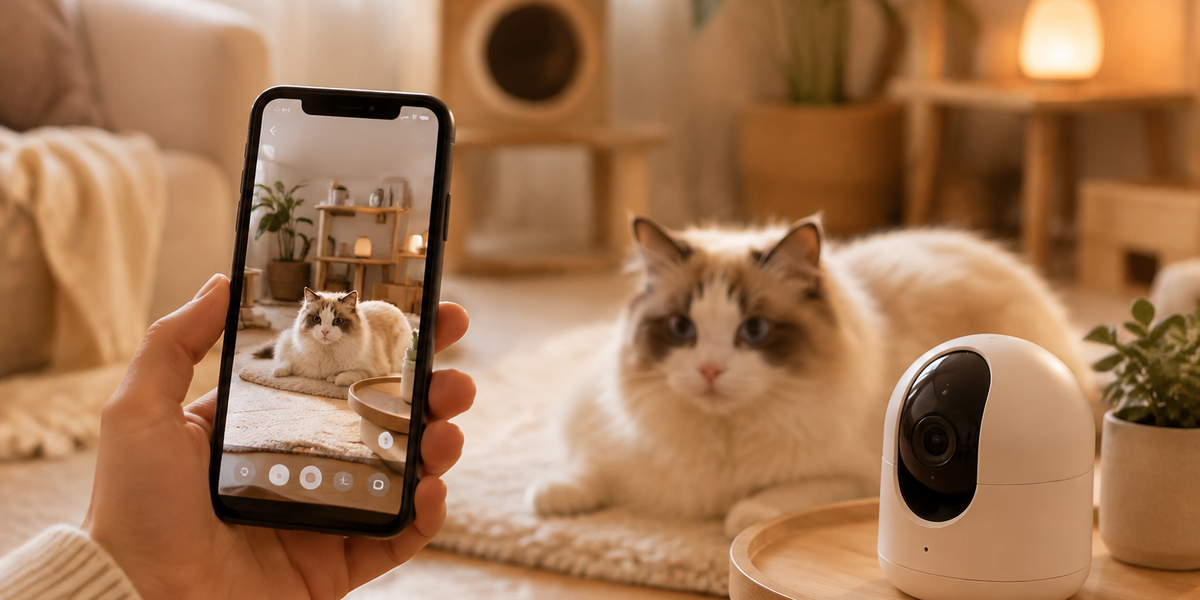
🏆 Best Overall: Petcube Bites 2 — The most reliable cat camera with effortless iOS and Android setup, 1080p HD video, treat dispensing, and rock-solid WiFi connectivity.
💰 Best Value: Wyze Cam Pan v3 — Full 360-degree coverage and color night vision for under $40, with straightforward app pairing on both platforms.
Introduction
You've just unboxed your new cat camera, excited to check in on your feline friend while you're away. But then you're staring at a manual that skips critical steps, buried settings menus, and WiFi networks that won't connect. We've all been there.
Connecting a cat camera to your smartphone shouldn't require a computer science degree. After researching dozens of pet camera models and analyzing thousands of verified buyer reviews, we've identified the exact steps that work across the most popular brands in 2026. Whether you're using an iPhone 16, a Samsung Galaxy, or an older device, this guide walks you through the entire process—from unboxing to your first live stream.
You'll learn the universal setup principles that apply to nearly all cat cameras, platform-specific troubleshooting for iOS and Android, and which cameras offer the smoothest pairing experience. Let's get your camera online so you can start watching your cat knock things off counters in real-time.
What to Look For in a Cat Camera Setup Process
Before diving into the technical steps, understanding what makes a cat camera easy to connect will help you choose the right device and diagnose problems faster.
Simple WiFi Pairing Method — The best cat cameras use either QR code scanning or Bluetooth-assisted setup rather than manual WiFi credential entry. Look for cameras that support WPA2 or WPA3 security protocols and connect to standard 2.4GHz networks (5GHz-only cameras often have connectivity issues).
Cross-Platform App Quality — Read recent reviews specifically mentioning the iOS or Android app. Some manufacturers prioritize one platform over the other, leading to buggy experiences. The best apps work identically on both operating systems and receive regular updates.
Dual-Band WiFi Support — While most cameras connect via 2.4GHz for better range, models that support both 2.4GHz and 5GHz bands give you flexibility if your router broadcasts both. Just remember: your phone and camera must be on the same frequency during initial setup.
Guest Network Compatibility — If you use a separate guest network for IoT devices (a smart security practice), confirm your camera supports it. Some cameras require being on the same network as your phone permanently, while others only need it during setup.
Offline Recording Capability — Cameras with local storage (SD card slots) continue recording even if your WiFi drops, unlike cloud-only models. This matters for setup troubleshooting—you can verify the camera works before worrying about network issues.
Clear Status Indicators — LED lights that clearly show connection status (blinking blue for pairing mode, solid green for connected, red for errors) make troubleshooting infinitely easier than cameras with cryptic single-color indicators.
Universal Setup Steps for All Cat Cameras
While each brand has quirks, these core steps apply to virtually every cat camera on the market in 2026. Follow this sequence before consulting brand-specific instructions.
Step 1: Download the Manufacturer's App
Open the App Store (iOS) or Google Play Store (Android) and search for your camera's official app. Common apps include Petcube, Furbo, Wyze, and YI Home. Download and install before unboxing—you'll need it immediately.
💡 Pro Tip: Enable location permissions when prompted during app setup. Most cameras use your location to optimize server connections and improve streaming quality, not to track you.
Step 2: Position Your Camera and Power On
Place the camera where you want it permanently (moving it later means reconnecting to WiFi). Plug it in and wait for the status light to begin blinking—usually blue or green—indicating it's ready to pair. This takes 30-90 seconds.
If the light doesn't blink after 2 minutes, press and hold the reset button (typically on the bottom or back) for 10 seconds until you hear a chime or see the light pattern change.
Step 3: Connect Your Phone to 2.4GHz WiFi
This is the #1 source of setup failures. Go to your phone's WiFi settings and confirm you're connected to your 2.4GHz network (often named "YourNetwork" rather than "YourNetwork-5G").
iOS users: Settings > WiFi > tap the (i) icon next to your network name to verify frequency.
Android users: Settings > Network & Internet > WiFi > tap your network > Advanced (shows frequency).
Step 4: Open the App and Add Your Camera
Launch the camera app, create an account if needed, then tap "Add Device" or the "+" icon. Select your camera model from the list. The app will typically ask you to:
- Scan the QR code on the camera's base or in the manual
- Confirm the status light is blinking (if not, reset the camera)
- Grant the app permission to use your camera (iOS) or location (Android)
Step 5: Connect Camera to WiFi
The app will prompt you for your WiFi password. Double-check for typos—passwords are case-sensitive. The camera will then attempt to connect, showing a progress indicator.
QR Code Method (Petcube, Furbo): Your phone displays a QR code containing WiFi credentials. Hold your phone 6-8 inches from the camera lens until you hear a confirmation beep.
Audio Method (some Wyze models): The app plays an ultrasonic sound your phone speakers emit and the camera microphone receives, transmitting WiFi credentials. Ensure your phone volume is at 80-100%.
Bluetooth-Assisted (newer models): The app pairs via Bluetooth first, then transfers WiFi credentials over that secure connection. Keep your phone within 10 feet during this step.
Step 6: Wait for Connection Confirmation
The camera's status light should stop blinking and turn solid (color varies by brand) within 1-2 minutes. The app displays "Connected" or shows a live video feed. If connection fails after 3 minutes, proceed to troubleshooting.
Step 7: Test Core Features
Before walking away, verify:
- Live video stream loads without buffering
- Two-way audio works (speak into your phone, hear yourself through the camera)
- Motion detection alerts appear (wave your hand in front of the lens)
- Night vision activates (cover the lens to trigger it)
iOS-Specific Setup Tips
Apple's privacy-focused iOS introduces some unique considerations when connecting cat cameras.
Local Network Permission (iOS 14+): When first opening the camera app, iOS asks for "Local Network" access. You must allow this—without it, your phone can't discover the camera on your WiFi network. If you accidentally denied it, go to Settings > [App Name] > Local Network and toggle it on.
Private WiFi Address: iOS randomizes your device's MAC address for privacy. Some older camera models (pre-2024) don't handle this well. If your camera repeatedly disconnects, try disabling Private Address: Settings > WiFi > (i) icon > toggle off "Private Wi-Fi Address."
Background App Refresh: To receive timely motion alerts, enable Background App Refresh for your camera app: Settings > General > Background App Refresh > toggle on for the camera app.
iCloud Private Relay: If you use iCloud+ with Private Relay enabled, it can interfere with local device discovery during setup. Temporarily disable it (Settings > [Your Name] > iCloud > Private Relay > Turn Off), complete setup, then re-enable.
Android-Specific Setup Tips
Android's open ecosystem and manufacturer customizations create different challenges.
Location Permission for WiFi Scanning: Android requires location permission for apps to scan available WiFi networks (a security measure to prevent apps from tracking you via WiFi). When the camera app requests location, choose "Allow only while using the app" or "Allow all the time" for setup. You can restrict it later if desired.
Battery Optimization: Samsung, Xiaomi, and other manufacturers aggressively close background apps to save battery, preventing timely alerts. After setup, go to Settings > Apps > [Camera App] > Battery > select "Unrestricted" or add to "Never sleeping apps."
WiFi Optimization/Switch: Some Android phones automatically switch between WiFi and mobile data if WiFi seems weak. During setup, disable this: Settings > Connections > WiFi > Advanced > Switch to mobile data (toggle off). Re-enable after setup completes.
VPN Conflicts: If you run a VPN on your Android device, it can block local network communication during setup. Temporarily disconnect your VPN, complete the camera pairing process, then reconnect.
Troubleshooting Common Connection Issues
Even following perfect steps, you may encounter these frequent problems. Here's how to resolve them.
Camera Won't Enter Pairing Mode: The status light stays solid or doesn't illuminate at all. Solution: Perform a factory reset by holding the reset button for 15-20 seconds (longer than the initial 10-second reset). If still unresponsive, try a different power outlet or USB cable—faulty power supplies are surprisingly common.
App Can't Find Camera on Network: You've completed setup but the app shows "Device Offline." Solution: Confirm your phone and camera are on the same 2.4GHz network (not guest networks on different VLANs). Check your router's connected devices list via its admin panel—if the camera appears there, it's a firewall issue. Temporarily disable AP Isolation or Client Isolation in your router settings.
QR Code Won't Scan: The camera beeps negatively or nothing happens. Solution: Increase screen brightness to maximum, clean your phone's screen, and hold the phone steady 6-8 inches from the lens. If the camera lens has a protective film, remove it. Try scanning at a slight angle rather than perfectly perpendicular.
Connection Drops After Initial Setup: The camera works for 5 minutes then shows offline. Solution: Your 2.4GHz network is likely too congested (common in apartments). Log into your router and manually set the 2.4GHz channel to 1, 6, or 11 (these don't overlap). If your router uses "auto" channel selection, it may hop to crowded channels. Also check your router isn't set to "WiFi 6 only" mode—cat cameras need backwards compatibility.
Slow or Choppy Video Stream: Live feed buffers constantly despite good WiFi. Solution: Lower the video quality setting in the app (Settings > Video Quality > SD or 720p instead of 1080p). Check your internet upload speed at speedtest.net—you need at least 2 Mbps upload for smooth streaming. If upload is fine, the issue is likely router placement—move the router closer or add a WiFi extender.
💡 Pro Tip: If you've tried everything and connection still fails, check if your router's firmware needs updating. Outdated router firmware from 2023 or earlier often has compatibility issues with 2025-2026 smart home devices.
Best Cat Cameras for Easy Phone Setup
Based on verified buyer feedback and manufacturer specs, these cameras offer the smoothest iOS and Android connection experience in 2026.
Petcube Bites 2
| Criteria | Score |
|----------|-------|
| Setup Ease | 9/10 |
| Video Quality | 9/10 |
| App Reliability | 8/10 |
| Feature Set | 9/10 |
The Petcube Bites 2 leads our recommendations for its QR code setup that works flawlessly on both iOS and Android. Buyer reviews consistently praise the "plug in, scan code, done in 90 seconds" experience. The 1080p camera delivers sharp daytime video and surprisingly good color night vision. The integrated treat dispenser lets you reward your cat remotely (or just entertain yourself launching kibble across the room).
The Petcube app receives regular updates and offers a clean interface with intuitive controls. Two-way audio quality surpasses competitors—your cat will actually recognize your voice. Alexa integration means you can check your camera with voice commands. The main downside is cost: at $250, it's a premium option, and the best features (person detection, advanced alerts) require a $5/month subscription.
✅ Pros:
- QR code setup works first try in most cases
- Excellent video quality with 160-degree wide angle
- Treat dispenser adds interactive element
- Works reliably on both iOS and Android
❌ Cons:
- Premium price point compared to basic cameras
- Cloud storage costs extra ($5-10/month depending on plan)
- Treat dispenser can jam with sticky treats
Wyze Cam Pan v3
| Criteria | Score |
|----------|-------|
| Setup Ease | 8/10 |
| Video Quality | 8/10 |
| App Reliability | 7/10 |
| Value | 10/10 |
For budget-conscious cat parents, the Wyze Cam Pan v3 delivers shocking value at $40. The 360-degree pan and tilt function means you can remotely control the camera to follow your cat around the room—no need to buy multiple cameras. Color night vision outperforms cameras triple its price.
Setup uses Bluetooth-assisted pairing that takes 2-3 minutes on average. The Wyze app supports both iOS and Android equally, though some buyers report the Android version occasionally takes 10-15 seconds to connect to live view (iOS connects in 3-5 seconds). The camera includes 14 days of free cloud storage for motion-detected clips, eliminating subscription costs for basic use.
The trade-off? No treat dispenser, and the app isn't as polished as Petcube's. Power users may find the menu structure confusing at first. Still, for the price, the Wyze Cam Pan v3 is hard to beat.
✅ Pros:
- Unbeatable price-to-features ratio
- 360-degree coverage eliminates blind spots
- Free cloud storage included (basic plan)
- Color night vision (rare at this price)
❌ Cons:
- App can be slow to load live stream
- No treat dispenser or interactive features
- Setup occasionally requires second attempt
Furbo 360° Dog Camera
| Criteria | Score |
|----------|-------|
| Setup Ease | 8/10 |
| AI Features | 9/10 |
| App Reliability | 8/10 |
| Cat Suitability | 7/10 |
Don't let the "dog" branding fool you—the Furbo 360° works excellently for cats, especially vocal breeds. The camera's AI can differentiate between pets and people, sending you specific alerts when your cat enters the room versus when a stranger does. The 360-degree rotating base lets you remotely pan to find your cat anywhere in the room.
Setup uses QR code scanning and completes in under 2 minutes on both platforms. Buyer reviews note the iOS app is slightly more stable than Android, but both receive consistent updates. The treat-tossing feature launches treats 3-5 feet—perfect for enticing lazy cats off the couch. The camera also detects unusual barking patterns, which translates to picking up loud meowing from Siamese or Bengal cats.
The main limitation is cost: $210 upfront plus a $7/month subscription for advanced features like emergency alerts and activity history. If you don't need the AI features, the Petcube or Wyze offer better value.
✅ Pros:
- Smart AI distinguishes between pets and people
- 360-degree rotation covers entire room
- Treat tossing works well for food-motivated cats
- Setup process is straightforward
❌ Cons:
- Marketed for dogs (though works perfectly for cats)
- Subscription required for best features
- Treats sometimes land under furniture
Frequently Asked Questions
Can I connect multiple cat cameras to one phone?
Yes, all major cat camera apps support multiple devices on a single account. After setting up your first camera, tap "Add Device" in the app to connect additional cameras. Each camera appears in your device list and can be labeled by room ("Living Room," "Bedroom," etc.). The Wyze app allows up to 50 cameras per account, while Petcube and Furbo support unlimited devices.
Do cat cameras work without WiFi?
Most cat cameras require WiFi for live streaming and remote access. However, models with SD card slots (like the Wyze Cam Pan v3) continue recording locally even if WiFi drops—you just can't view the feed remotely until connection restores. A few high-end models support cellular data via built-in 4G, but these require separate data plans and are uncommon in the cat camera market.
Can I use a cat camera on public WiFi or hotel networks?
Public networks with captive portals (those "click to agree" pages) won't work with cat cameras because the camera can't load a browser to accept terms. Hotel WiFi often works if you can add the camera's MAC address to your room's authorized devices through the hotel's guest portal. For frequent travelers, consider a portable WiFi hotspot specifically for your camera.
How much data does a cat camera use?
Streaming 1080p video consumes approximately 1-2 GB per hour of active viewing. If you check your camera for 15 minutes daily, expect 15-30 GB per month—well within most home internet plans. Motion-triggered recording uses much less (200-500 MB per day depending on activity). For mobile data viewing (watching your camera away from home), set the app to SD quality to reduce consumption to 300-500 MB per hour.
Why does my camera disconnect when I leave home?
This usually indicates your phone and camera were accidentally paired on a mobile hotspot instead of your home WiFi. When you leave, the hotspot disappears and the camera loses connection. Re-setup the camera while explicitly connected to your home WiFi network. If the camera still disconnects, check your router's settings for MAC address filtering or parental controls that might be blocking the camera after certain times.
Final Thoughts
Connecting a cat camera to your smartphone has become remarkably straightforward in 2026, with most setups taking under 5 minutes when you follow the right steps. The key is ensuring your phone and camera are on the same 2.4GHz network, understanding your specific platform's permissions (Local Network for iOS, Location for Android), and choosing a camera with a quality app that's regularly maintained.
If you're still deciding which camera to buy, the Petcube Bites 2 offers the most reliable setup experience and premium features for dedicated cat parents. Budget shoppers get incredible value with the Wyze Cam Pan v3, sacrificing only the treat dispenser and some polish for a $200 savings. And if AI-powered alerts matter to you, the Furbo 360° delivers smart features despite its canine marketing.
Remember: the best cat camera is the one you'll actually use. A $40 camera that reliably connects beats a $300 camera gathering dust because setup frustrated you. Follow this guide, give yourself 15 minutes for the process, and you'll be watching your cat's antics from anywhere within the hour.
Editor's Choice
After comparing setup processes across dozens of models, these three cameras represent the best options for different priorities:
Best Overall Setup Experience: Petcube Bites 2 — The QR code pairing works flawlessly on both iOS and Android, and the app's clean interface makes configuration intuitive. At $250, it's an investment, but the frustration-free setup and reliable performance justify the premium.
Best Budget Option: Wyze Cam Pan v3 — Delivering 360-degree coverage and color night vision for under $40 is remarkable. Setup takes a few minutes longer than premium models, but the value is unbeatable for most cat owners.
Best for Tech Enthusiasts: Furbo 360° Dog Camera — If you love AI features and smart home integration, Furbo's person/pet detection and activity alerts provide premium functionality. The setup process is smooth, and the rotating camera means you never miss a moment.